
Documents Live, a web authoring and publishing system
Documents Live, a web authoring and publishing system
If you see this, something is wrong
To get acquainted with the document, the best thing to do is to select the "Collapse all sections" item from the "View" menu. This will leave visible only the titles of the top-level sections.
Clicking on a section title toggles the visibility of the section content. If you have collapsed all of the sections, this will let you discover the document progressively, from the top-level sections to the lower-level ones.
Generally speaking, anything that is blue is clickable.
Clicking on a reference link (like an equation number, for instance) will display the reference as close as possible, without breaking the layout. Clicking on the displayed content or on the reference link hides the content. This is recursive: if the content includes a reference, clicking on it will have the same effect. These "links" are not necessarily numbers, as it is possible in LaTeX2Web to use full text for a reference.
Clicking on a bibliographical reference (i.e., a number within brackets) will display the reference.
Speech bubbles indicate a footnote. Click on the bubble to reveal the footnote (there is no page in a web document, so footnotes are placed inside the text flow). Acronyms work the same way as footnotes, except that you have the acronym instead of the speech bubble.
By default, discussions are open in a document. Click on the discussion button below to reveal the discussion thread. However, you must be registered to participate in the discussion.
If a thread has been initialized, you can reply to it. Any modification to any comment, or a reply to it, in the discussion is signified by email to the owner of the document and to the author of the comment.
The blue button below that says "table of contents" is your tool to navigate in a publication.
The left arrow brings you to the previous document in the publication, and the right one brings you to the next. Both cycle over the publication list.
The middle button that says "table of contents" reveals the publication table of contents. This table is hierarchical structured. It has sections, and sections can be collapsed or expanded. If you are a registered user, you can save the layout of the table of contents.
First published on Saturday, Mar 29, 2025 and last modified on Saturday, Mar 29, 2025
You can create figures with an image and a caption the standard way. Here is the code:
\begin{figure}
\includegraphics{algorithm-photo.jpeg}
\caption{Vintage computing}
\end{figure}
and here is the result:

The optional parameters for \includegraphics, which are positioning parameters, are ignored.
You can also use a URL for the \includegraphics parameter, to include a remote image. Here is the source code:
\begin{figure}
\includegraphics{https://upload.wikimedia.org/wikipedia/commons/e/ec/Carl_Friedrich_Gauss_1840_by_Jensen.jpg}
\caption{A remote image: portrait of Carl Friedrich Gauss}
\end{figure}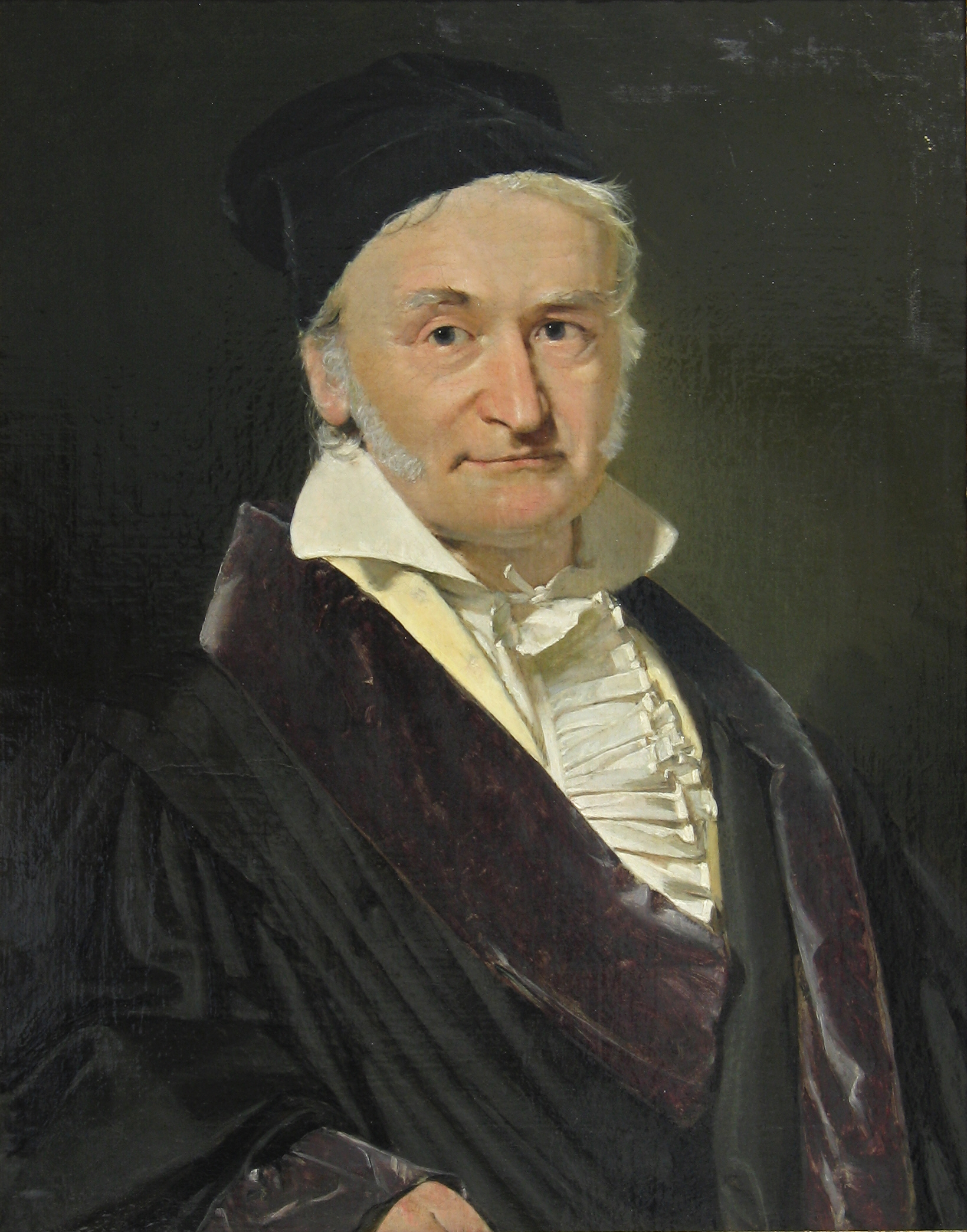
You can use png, jpg (or jpeg), svg or gif image files or links. Note that animated gifs work:

\includegraphics in running text or mathYou can also use the \includegraphics command inside reunning text. Here is an example with an SVG graphic: 
and here is the code for the previous segment:
You can also use the \includegraphics command inside reunning text. Here is an example with an SVG graphic: \includegraphics{creating a nft picture.svg}This also works in displaymath.
LaTeX2Web provides a simpler way to include images using the image environment.
\begin{image}
\url{fathers-day-composition.jpeg}
\alt{Sepia photos in a book.}
\end{image}
\url can point both to a remote image or to a local file.
\alt is used for HTML purposes and also provides the caption for the image. A separate \caption command is not parsed for compatiblity reasons with the Markdown syntax.

LaTeX2Web lets you use an image as a link to a URL with the imageLink environment.
\begin{imageLink}
\imageUrl{https://upload.wikimedia.org/wikipedia/commons/e/ec/Carl_Friedrich_Gauss_1840_by_Jensen.jpg}
\url{https://en.wikipedia.org/wiki/Carl_Friedrich_Gauss}
\alt{Carl Friedrich Gauss}
\caption{Have look at the Wikipedia page on Gauss.}
\end{imageLink}
\imageUrl is the URL of the image (it can be the name of a local file).
\url is the URL the image points to. It will be opend in a new tab/window.
\alt is used for HTML.
\caption provides the caption. It not present, \alt is used.
The most usual way to upload images in to have them in the document archive that you upload at the beginning of the project. The following file formats are supported natively for images: png, jpg (or jpeg), svg and gif.
If your document uses pdf or eps files, it is better to convert the to one of the previous file formats, since neither pdf nor eps are natively supported in the Web.
However, if there are still pdf or eps image files in your upload, LaTeX2Web will give you the possibility to convert them to the png format. LaTeX2Web relies on the ImageMagick software on top of Ghostscript to convert the file. Depending on the image complexity, this may cause the LaTeX2Web session to become un-responsive; this is why it is advised to only convert files below 200 KB in size.
At any time, you can convert the pdf or eps files in your project by selecting the "Convert PDF files" item of your document’s action menu.
You can upload media files to your project using the "Upload media" item of the action menu on your document’s dashboard. This option is also available when browsing the document web view or when using the Inline Editor.
The same observations on the choice of file formats apply as when uploading a project archive.
Note that you are not required to upload the media files one by one; you can also upload a zip archive containing your files.
It is sometimes useful to use the URL of an image file. To get the URL, use the "Get image URL" item in the document’s action menu. You will be presented a gallery of the images in your project. Clicking on an image will copy its URL to the clipboard.